Integrations
The Integrations module lets Administrators connect OpenCLM to external services. Navigate to Settings → Integrations or click Integrations in the sidebar.
OpenSign (E-Signature)
OpenSign is the open-source e-signature platform that powers OpenCLM's signature workflow.
Setup
- Deploy OpenSign (self-hosted) or use the OpenSign cloud service.
- In OpenSign, create an API application and copy the API Key and API URL.
- In OpenCLM, go to Integrations → OpenSign.
- Enter:
- OpenSign API URL (e.g.
https://sign.yourdomain.com/api) - OpenSign API Key
- OpenSign API URL (e.g.
- Click Test Connection — a success badge confirms the integration is live.
- Click Save.
Once configured, the Signatures module becomes fully functional for all users.
Troubleshooting OpenSign
| Problem | Solution |
|---|---|
| "Connection failed" on Test | Verify the API URL is reachable from your OpenCLM server |
| Signature requests not arriving | Check OpenSign's SMTP config; verify the signatory email is correct |
| Signed PDF not returned | Ensure OpenSign's webhook URL is set to https://your-openclm-url/api/webhooks/opensign |
Keycloak (SSO / Identity)
Keycloak provides enterprise-grade SSO, LDAP/AD federation, and MFA for OpenCLM.
Setup
Keycloak is configured at the server level (in .env or Docker Compose). See Keycloak Setup for detailed instructions.
Slack (Notifications)
Send OpenCLM notifications to Slack channels.
Setup
- In Slack, create an Incoming Webhook for your workspace and channel.
- In OpenCLM, go to Integrations → Slack.
- Paste the Webhook URL.
- Select which events to forward:
- Approval requests
- Contract signed
- Deadlines approaching
- New contract created
- Click Save.
Slack messages include a link to the relevant contract in OpenCLM.
Webhooks (Custom)
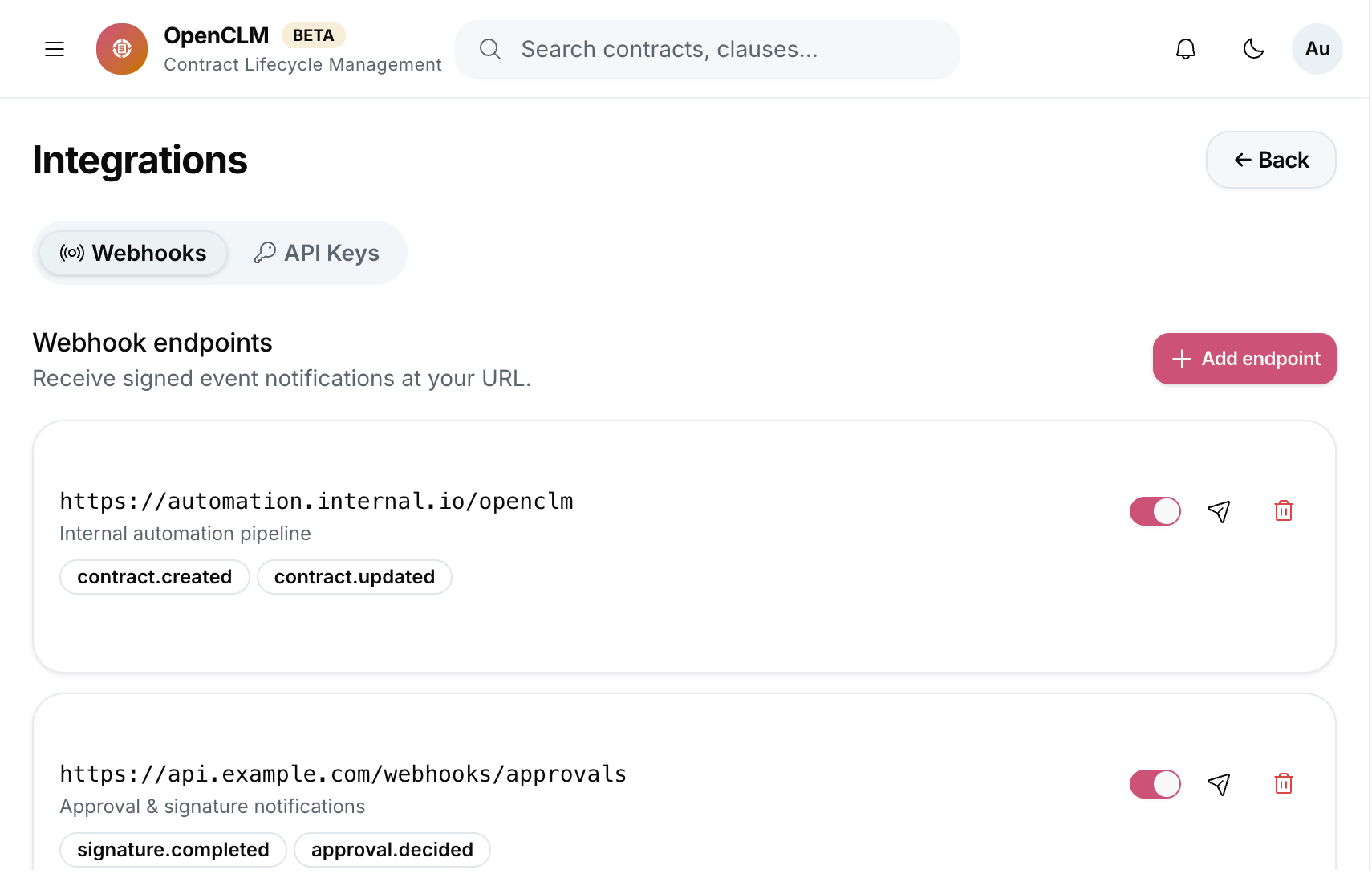
Send HTTP POST payloads to any URL when specific events occur — useful for custom integrations with your ERP, CRM, or internal tools.
Setting Up a Webhook
- Go to Integrations → Webhooks → New Webhook.
- Enter the target URL.
- Select events to trigger:
contract.createdcontract.status_changedapproval.completedcontract.signedobligation.overdue
- Optionally add a Secret to verify request authenticity (HMAC-SHA256).
- Click Save.
Webhook Payload Format
{
"event": "contract.status_changed",
"timestamp": "2025-10-01T14:32:00Z",
"organisation_id": "org_abc123",
"data": {
"contract_id": "ctr_xyz789",
"title": "NDA with Acme Corp",
"old_status": "under_review",
"new_status": "approved",
}
}
Webhook Delivery Logs
Go to Integrations → Webhooks → Delivery Logs to see the history of webhook calls, their HTTP response codes, and retry attempts.
OpenCLM retries failed deliveries up to 3 times with exponential backoff.
Future Integrations (Roadmap)
The following integrations are planned or community-requested:
- Salesforce — sync counterparties and contract values
- Jira — create Jira issues from obligations
- Google Drive / SharePoint — import/export contract documents
- DocuSign — alternative e-signature provider