Settings
The Settings module lets Administrators configure the OpenCLM instance for their organisation. Access it by clicking Settings in the sidebar.
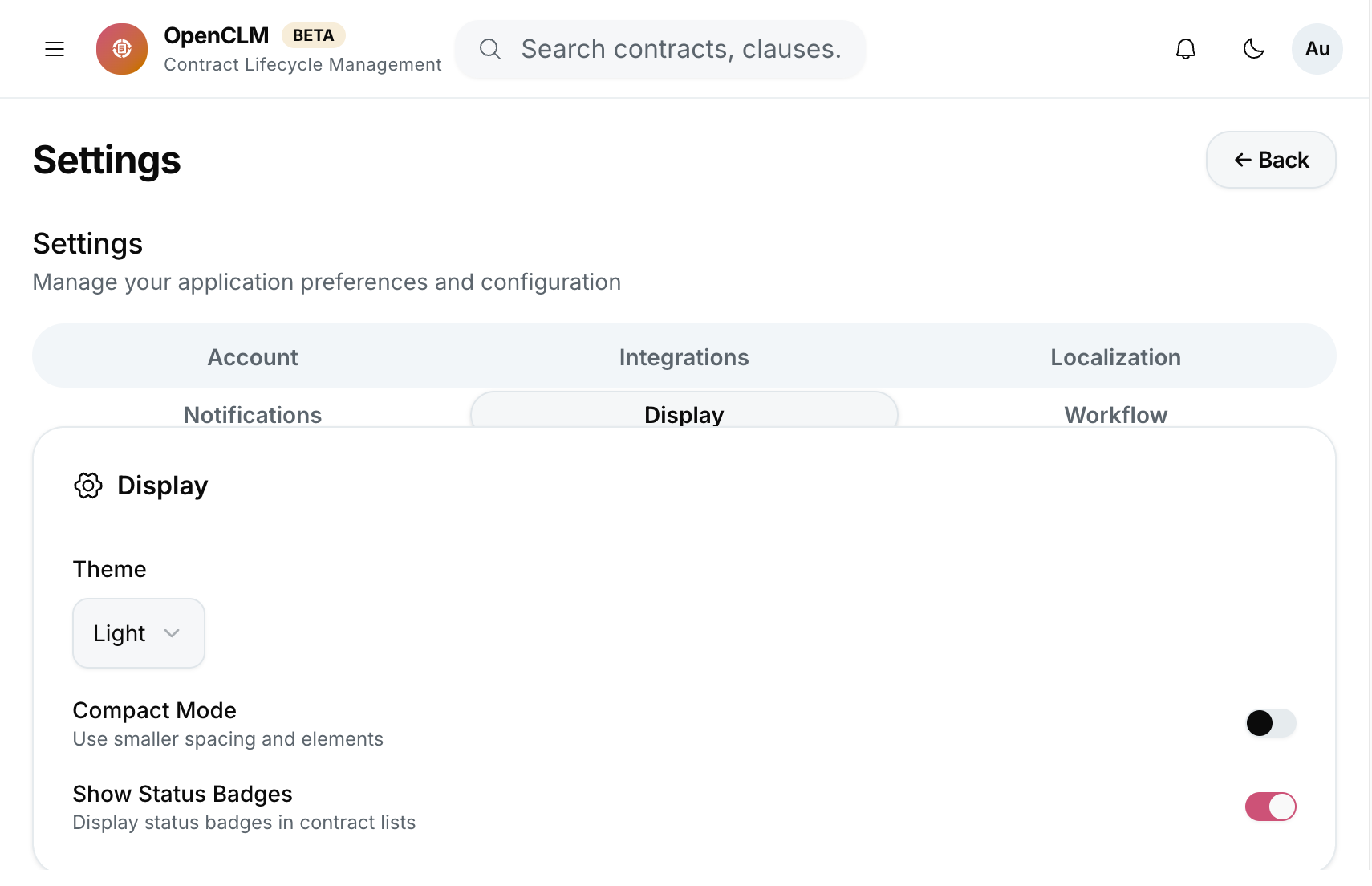
Most settings are organisation-scoped. Super Admins also have access to instance-level settings that affect all organisations.
General Settings
| Setting | Description |
|---|---|
| Organisation Name | Displayed in the header and letters |
| Organisation Logo | Shown in the org selector and letter templates |
| Default Currency | Used in contract value fields and analytics |
| Default Time Zone | All deadline/reminder timestamps |
| Date Format | DD/MM/YYYY, MM/DD/YYYY, or YYYY-MM-DD |
| Contract ID Prefix | Prefix for auto-generated contract reference numbers (e.g. CLM-) |
Notification Settings
Go to Settings → Notifications to configure:
Email Notifications
- SMTP Configuration — host, port, username, password, from-address.
(Instance-level setting; requires Super Admin or server.envconfiguration.) - Enable / disable specific notification types per role.
- Notification digest — send a daily/weekly summary instead of individual emails.
Deadline Reminder Offsets
Set how many days before expiry reminders are sent: 90 / 60 / 30 / 14 / 7 / 1 days (configurable multi-select).
Workflow Settings
Go to Settings → Workflows to configure global workflow defaults:
- Escalation period — days before an unanswered approval is escalated.
- Auto-approve on escalation — toggle on to auto-approve after the escalation period.
- Default workflow — the workflow template applied when no specific template is configured for a contract type.
Security Settings
Go to Settings → Security:
| Setting | Description |
|---|---|
| Session timeout | Minutes of inactivity before a user is logged out |
| Password policy | Minimum length, complexity requirements (if not using SSO) |
| IP allowlist | Restrict login to specific IP ranges |
| Audit log retention | How many months of audit events to retain |
| Two-factor authentication | Require 2FA for all users (when not using Keycloak SSO) |
Branding
Go to Settings → Branding to customise the UI for your organisation:
- Primary colour — used in buttons and highlights (does not affect admin/system pages).
- Logo — shown in the top navigation bar.
- Email header logo — used in notification emails.
- Custom domain — (instance-level) the URL your users navigate to.
Audit Log
Go to Settings → Audit Log to view a tamper-evident log of all significant events:
- User login / logout
- Contract create / update / delete / status change
- Role assignment changes
- Settings changes
- API key usage
You can filter by event type, user, and date range. Export as CSV for compliance reporting.
API Keys
Go to Settings → API Keys to create and manage API tokens for programmatic access:
- Click New API Key.
- Give it a name and set an expiry date.
- Assign a role — the API key will have the same permissions as that role.
- Click Create — copy the key immediately (it is shown only once).
See API Reference for usage.