Approval Workflows
OpenCLM's Approval Workflows engine automates the routing of contracts from authors to reviewers, approvers, and signatories — eliminating manual email chains and missed reviews.
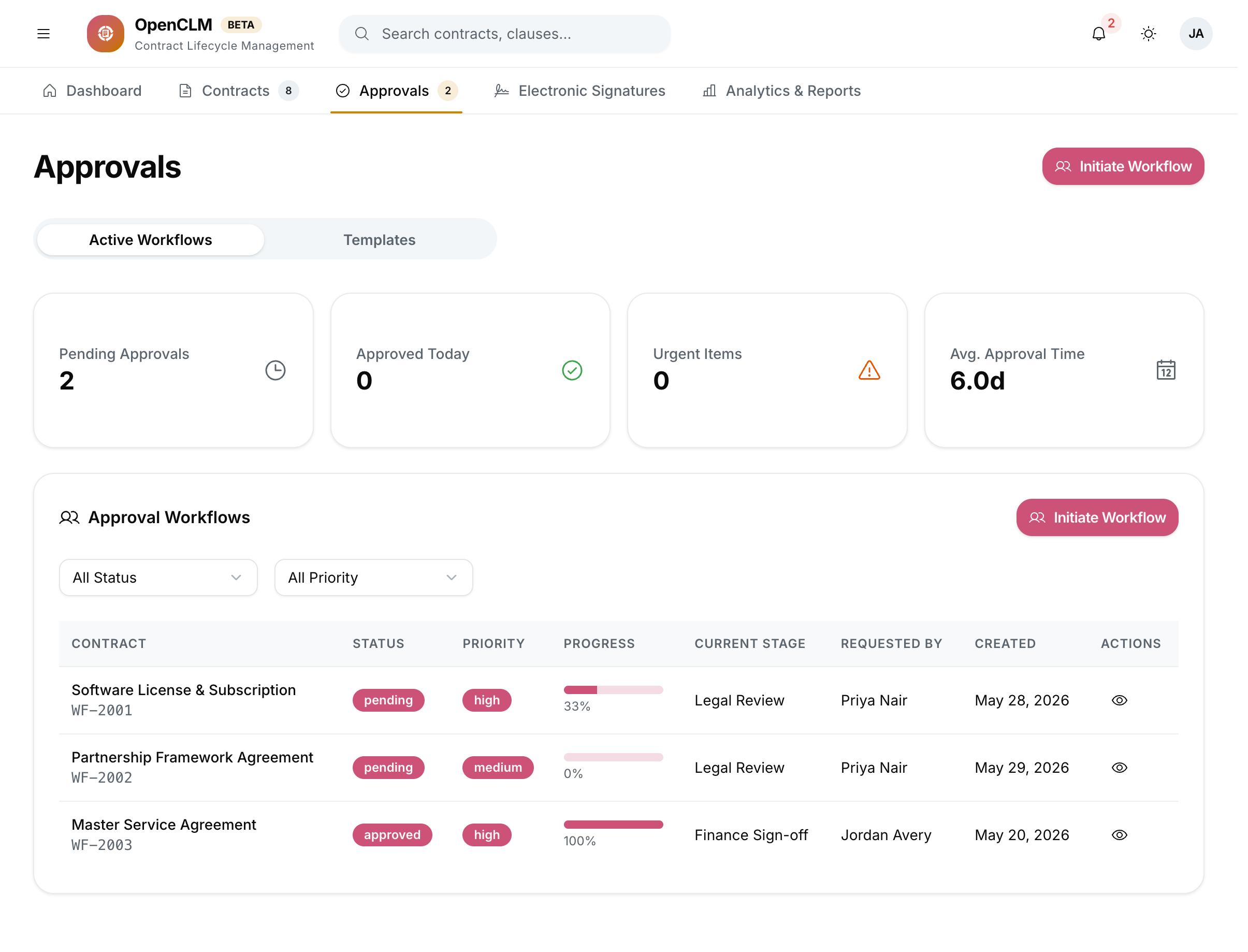
How Approval Workflows Work
When an author submits a contract for review, OpenCLM:
- Looks up the workflow template assigned to this contract type / department.
- Creates an Approval Request for each step in the workflow.
- Notifies the approvers by email and in-app notification.
- Tracks each approver's response (Approved / Rejected / Delegated).
- Moves the contract to the next step when the current step is satisfied.
- Once all steps are complete, marks the contract as Approved and notifies the author.
Workflow Types
| Type | How it works |
|---|---|
| Sequential | Step 2 begins only after Step 1 is complete |
| Parallel | All approvers in a group are notified simultaneously; all must approve |
| Any-of | All approvers in a group are notified; only one needs to approve |
| Conditional | A step is included only if a condition is met (e.g. value > $50,000) |
Creating a Workflow Template
Only Contract Managers and Administrators can create workflow templates.
- Go to Contracts → Workflow Templates (tab in the Contracts view).
- Click New Workflow Template.
- Give the template a name and optionally restrict it to a contract type or department.
- Add steps using the visual workflow builder:
- Click + Add Step.
- Set the step name (e.g. "Legal Review").
- Choose step type: Sequential / Parallel / Any-of.
- Add one or more approvers: specific users or role-based (e.g. "any user with role Legal Counsel").
- Set the due-in duration — the number of days the approver has before an escalation is triggered.
- Optionally add a condition (e.g.
contract.value > 100000).
- Drag steps to reorder.
- Click Save.
Assigning a Workflow to a Contract
Workflow templates can be applied:
- Automatically — based on contract type or department rule (set by Admin).
- Manually — authors can select a workflow when submitting for review.
Approving or Rejecting
Approvers receive an email with a direct link to the contract. They can also see all pending approvals in the Approval Center.
To respond:
- Open the contract.
- Click the Approvals tab.
- Read the contract and any attached notes.
- Click Approve or Reject.
- Optionally add a comment explaining your decision.
Rejection Behaviour
When an approver rejects:
- The contract status returns to Draft.
- The author receives a notification with the rejection reason.
- The workflow resets — the author must re-submit after making changes.
Delegation
If you are unavailable, you can delegate your approval to another user:
- In the Approvals tab, click Delegate.
- Select the delegate user.
- The delegate is notified and has full approval authority for this contract.
Delegation is logged in the audit trail.
Escalation
If an approver does not respond within the configured due-in period:
- An escalation notification is sent to the approver and their manager.
- After a second configurable period, the step can be auto-approved or escalated to an admin (depending on your configuration in Settings → Workflows).
Workflow History
Every contract's Approvals tab shows the full history: who approved, who rejected, when, and any comments — even after the workflow is complete.