Authoring & Editor
OpenCLM ships with a rich text editor purpose-built for legal document authoring. It supports formatting, clause insertion, tracked changes, and co-editing.
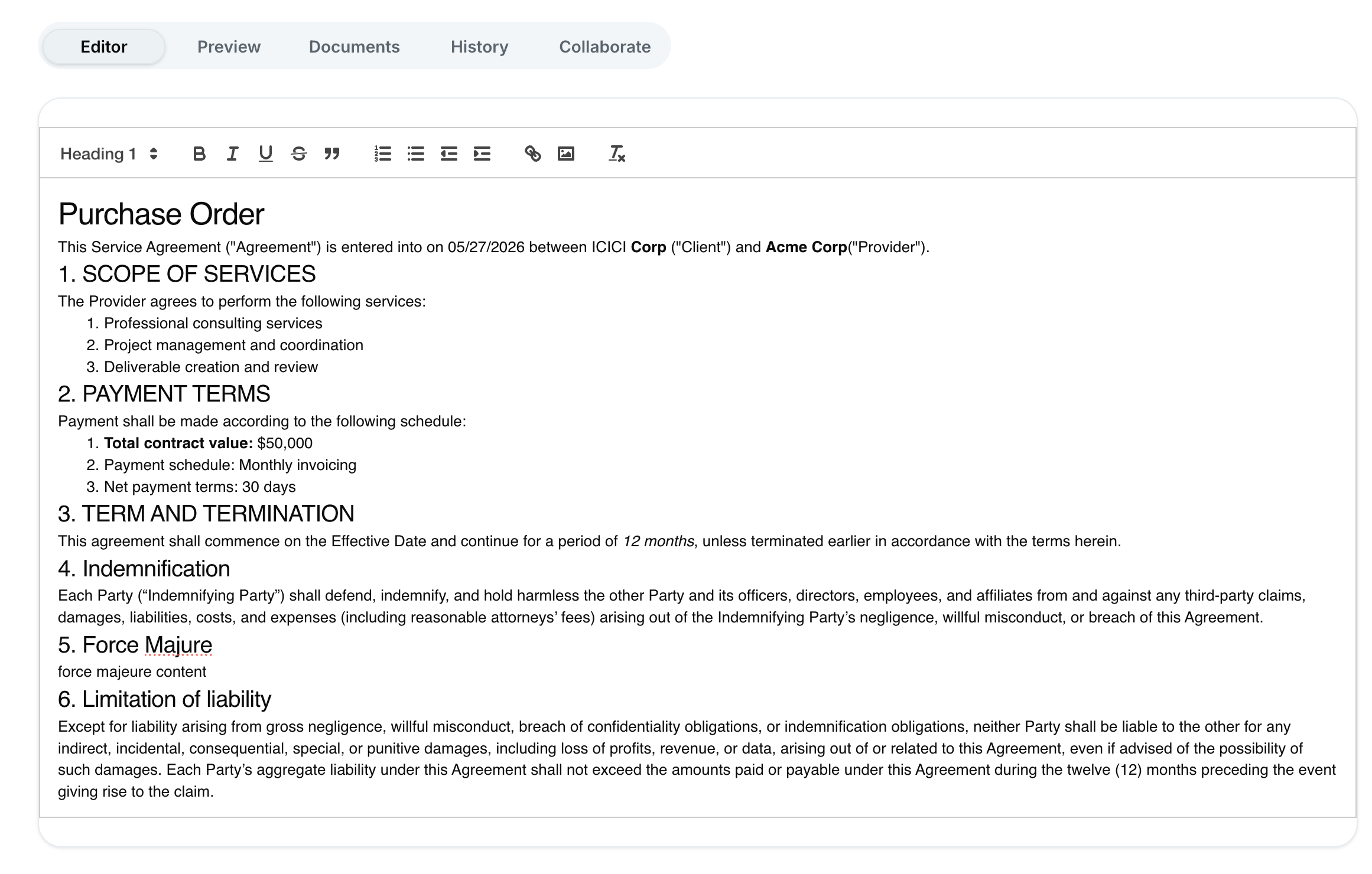
Opening the Editor
- Open any contract in Draft or Under Review status.
- Click the Edit button in the Document tab.
The editor occupies the central panel. The right panel shows the Clause Library sidebar for quick insertion.
Text Formatting
The editor toolbar supports:
| Format | Keyboard shortcut |
|---|---|
| Bold | Ctrl/Cmd + B |
| Italic | Ctrl/Cmd + I |
| Underline | Ctrl/Cmd + U |
| Strikethrough | Ctrl/Cmd + Shift + S |
| Heading 1 / 2 / 3 | Toolbar → Paragraph style |
| Ordered list | Ctrl/Cmd + Shift + 7 |
| Unordered list | Ctrl/Cmd + Shift + 8 |
| Blockquote | Ctrl/Cmd + Shift + B |
| Code block | Ctrl/Cmd + Alt + C |
| Align left/center/right | Toolbar alignment buttons |
Inserting Clauses
- Place your cursor at the insertion point in the document.
- In the Clause Library sidebar (right panel), search or browse clauses by category.
- Click Insert next to any clause to embed it at the cursor position.
Inserted clauses are visually highlighted. If a clause is marked mandatory, a lock icon appears and the clause cannot be deleted.
Variables / Placeholders
Use double-brace syntax to insert dynamic fields:
This Agreement is entered into as of {{effective_date}} by {{party_a_name}} ("Company") and {{counterparty_name}} ("Counterparty").
When the contract is finalized, variable values are resolved from the contract metadata.
Tracked Changes
Turn on Track Changes (toolbar → Review → Track Changes). All edits will be highlighted:
- Green underline — added text
- Red strikethrough — removed text
Reviewers can Accept or Reject individual changes from the Review panel on the right.
Comments & Suggestions
Select any text and click the comment icon (or press Ctrl/Cmd + Alt + M) to add a comment. Comments appear in the right margin and are visible to all users with access to the contract.
Saving & Auto-Save
The editor auto-saves every 30 seconds. A status indicator in the top bar shows "Saved" or "Saving...". Click Save manually at any time. Each save creates a new version in Version History.
Finalising a Draft
When the document body is ready:
- Click Save to ensure the latest changes are committed.
- Click Submit for Approval to trigger the configured Approval Workflow.
The contract status changes from Draft to Under Review and all approvers are notified by email.