Templates
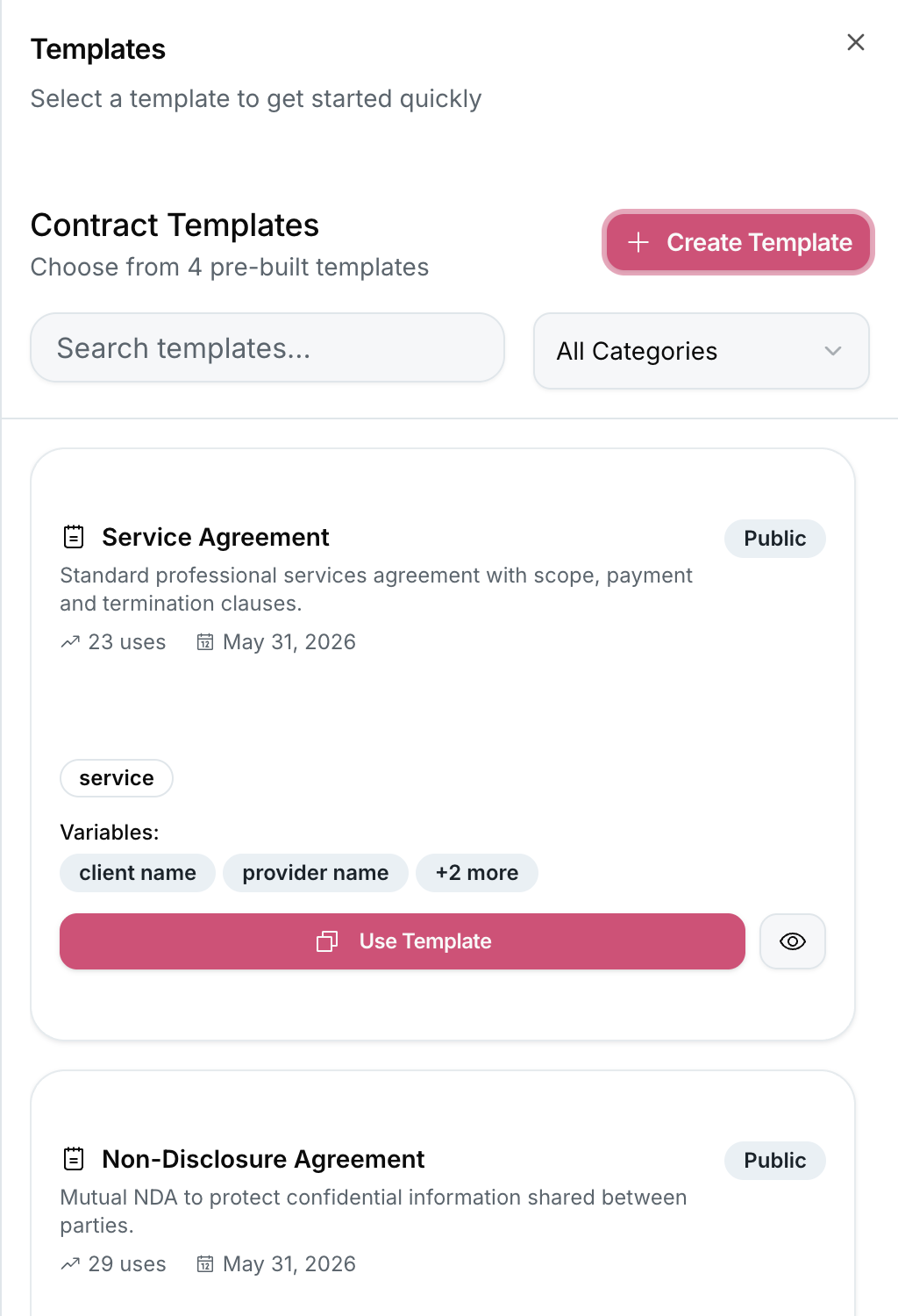
Templates are the foundation of scalable contract authoring in OpenCLM. A template defines the standard structure, clauses, and metadata defaults for a contract type so your team never starts from a blank page.
Who Can Manage Templates?
| Action | Roles |
|---|---|
| Create / edit templates | Contract Manager, Legal Counsel, Administrator |
| Use templates to create contracts | All authoring-capable roles |
| Delete templates | Administrator, Super Admin |
Creating a Template
- Go to Contracts → Templates (top-right tab in the Contracts view).
- Click New Template.
- Fill in the template metadata:
- Name — e.g. "Standard NDA — Mutual"
- Type — the contract type this template applies to
- Description — shown to authors when choosing a template
- Default Expiry Duration — e.g. "12 months" auto-fills the expiry date when a contract is created from this template
- Click Create to open the template editor.
- Author the template body just like a regular contract — insert text, headings, clauses, and variable placeholders.
- Click Publish when ready.
Unpublished templates are only visible to their creator. Publish to make them available to your whole organisation.
Template Variables
Use {{variable_name}} syntax in the template body. Standard variables:
| Variable | Resolved from |
|---|---|
{{counterparty_name}} | Contract counterparty field |
{{effective_date}} | Contract effective date |
{{expiry_date}} | Contract expiry date |
{{contract_value}} | Contract value |
{{owner_name}} | Contract owner's full name |
{{today}} | Date the contract is created |
Custom variables can be defined per template. Authors fill them in during contract creation.
Locking Sections
Mark any section as Locked to prevent contract authors from modifying it. Locked sections (e.g. a governing law clause or liability cap) display with a padlock icon in the editor and can only be edited by users with the Legal Counsel or Administrator role.
Managing Versions
Templates are versioned. When you publish a new version:
- Existing contracts created from older versions are not automatically updated.
- New contracts created from this template use the latest version.
- Admins can see a diff between any two template versions.
Applying a Template
When creating a new contract:
- Click New Contract → From Template.
- Browse or search available templates.
- Select the template and click Use Template.
- Fill in the required variables in the side panel.
- The editor opens pre-filled with the template content — editable fields are unlocked, locked sections are read-only.