Roles & Permissions
OpenCLM uses Role-Based Access Control (RBAC). Each user is assigned one or more roles. Each role grants a specific set of permissions across the system's resources. This page documents all 12 built-in roles and their permissions.
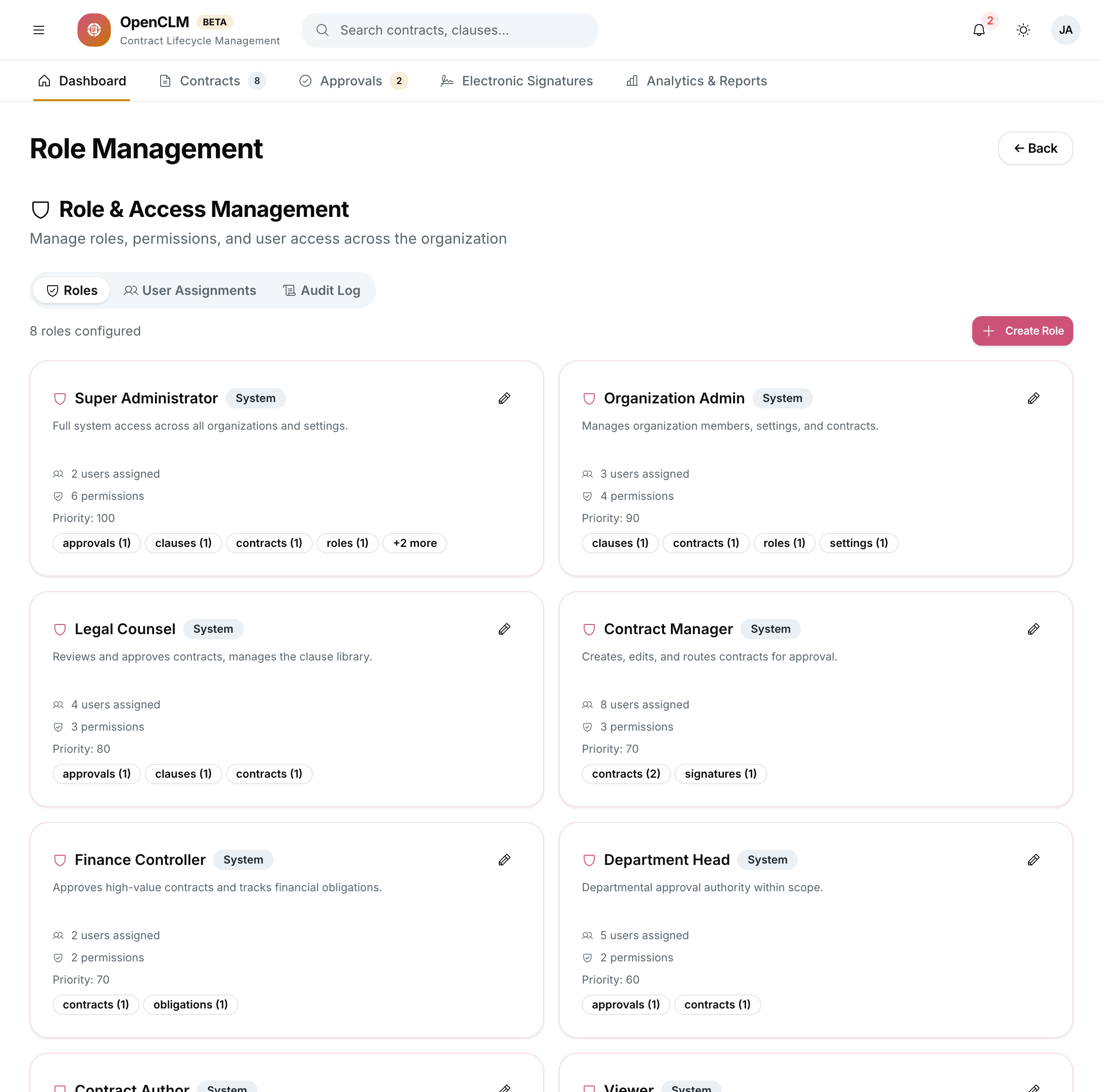
The 12 Built-in Roles
| Role | Purpose |
|---|---|
| Super Admin | Unrestricted access to everything — all resources, all actions, all organisations |
| Administrator | Organisation-level admin. Can manage users, roles, settings, and all contracts within the organisation |
| Contract Manager | Manages the full contract lifecycle for the organisation |
| Legal Counsel | Reviews contracts legally, edits clause library, approves from a legal perspective |
| Finance Controller | Reviews financial terms, approves high-value contracts, accesses financial analytics |
| Procurement Manager | Manages vendor contracts and the procurement workflow |
| Department Head | Approves contracts for their department, views department-scoped analytics |
| Contract Author | Creates and edits contracts assigned to them |
| Reviewer | Reviews and comments on contracts routed to them; cannot approve |
| Auditor | Read-only access to all contracts and audit logs; cannot create or modify |
| External Counsel | External lawyer with limited read access to specific contracts shared with them |
| Signatory | Can view and e-sign contracts; limited access to the rest of the system |
Permission Matrix
The table below uses: ✅ Full access · 🔵 Partial/scoped · ❌ No access
| Resource | Super Admin | Administrator | Contract Manager | Legal Counsel | Finance Controller | Contract Author | Reviewer | Auditor | Signatory |
|---|---|---|---|---|---|---|---|---|---|
| Contracts — create | ✅ | ✅ | ✅ | 🔵 | ❌ | ✅ | ❌ | ❌ | ❌ |
| Contracts — read | ✅ | ✅ | ✅ | ✅ | ✅ | 🔵 | 🔵 | ✅ | 🔵 |
| Contracts — update | ✅ | ✅ | ✅ | 🔵 | ❌ | 🔵 | ❌ | ❌ | ❌ |
| Contracts — delete | ✅ | 🔵 | ❌ | ❌ | ❌ | ❌ | ❌ | ❌ | ❌ |
| Templates — manage | ✅ | ✅ | ✅ | ✅ | ❌ | ❌ | ❌ | ❌ | ❌ |
| Clauses — manage | ✅ | ✅ | ✅ | ✅ | ❌ | ❌ | ❌ | ❌ | ❌ |
| Workflows — manage | ✅ | ✅ | ✅ | ❌ | ❌ | ❌ | ❌ | ❌ | ❌ |
| Approvals — approve | ✅ | ✅ | ✅ | ✅ | ✅ | ❌ | ❌ | ❌ | ❌ |
| Signatures — create | ✅ | ✅ | ✅ | ❌ | ❌ | ❌ | ❌ | ❌ | ✅ |
| Reports — export | ✅ | ✅ | ✅ | 🔵 | ✅ | ❌ | ❌ | ✅ | ❌ |
| Roles — manage | ✅ | ✅ | ❌ | ❌ | ❌ | ❌ | ❌ | ❌ | ❌ |
| Settings — manage | ✅ | ✅ | ❌ | ❌ | ❌ | ❌ | ❌ | ❌ | ❌ |
| Integrations — manage | ✅ | ✅ | ❌ | ❌ | ❌ | ❌ | ❌ | ❌ | ❌ |
| Audit Log — read | ✅ | ✅ | ❌ | ❌ | ❌ | ❌ | ❌ | ✅ | ❌ |
🔵 Partial: scoped to contracts the user owns or is a party to.
Managing Roles in the UI
Administrators and Super Admins can manage roles at Settings → Roles (or the Roles sidebar item).
Assigning a Role to a User
- Go to Settings → Users.
- Click the user's name.
- In the Roles section, click Add Role.
- Select one or more roles from the dropdown.
- Click Save.
Creating Custom Roles (Advanced)
Super Admins can create custom roles with a granular permission set:
- Go to Roles → New Role.
- Name the role.
- Use the permission matrix toggle panel to enable specific actions on specific resources.
- Click Save.
Custom roles appear in all role assignment dropdowns alongside the built-in roles.
Role Assignment Best Practices
- Follow the principle of least privilege — assign the most restrictive role that still lets the user do their job.
- Use Department Head roles scoped to a specific department rather than granting organisation-wide Contract Manager rights.
- Auditor is the right role for compliance, legal operations, or finance team members who need to review contracts but should not edit anything.
- External Counsel grants minimal read access to specific shared contracts — use this for outside law firms rather than giving them internal roles.