Contract Repository
The Contracts module is the heart of OpenCLM. It is the single source of truth for every agreement your organisation manages.
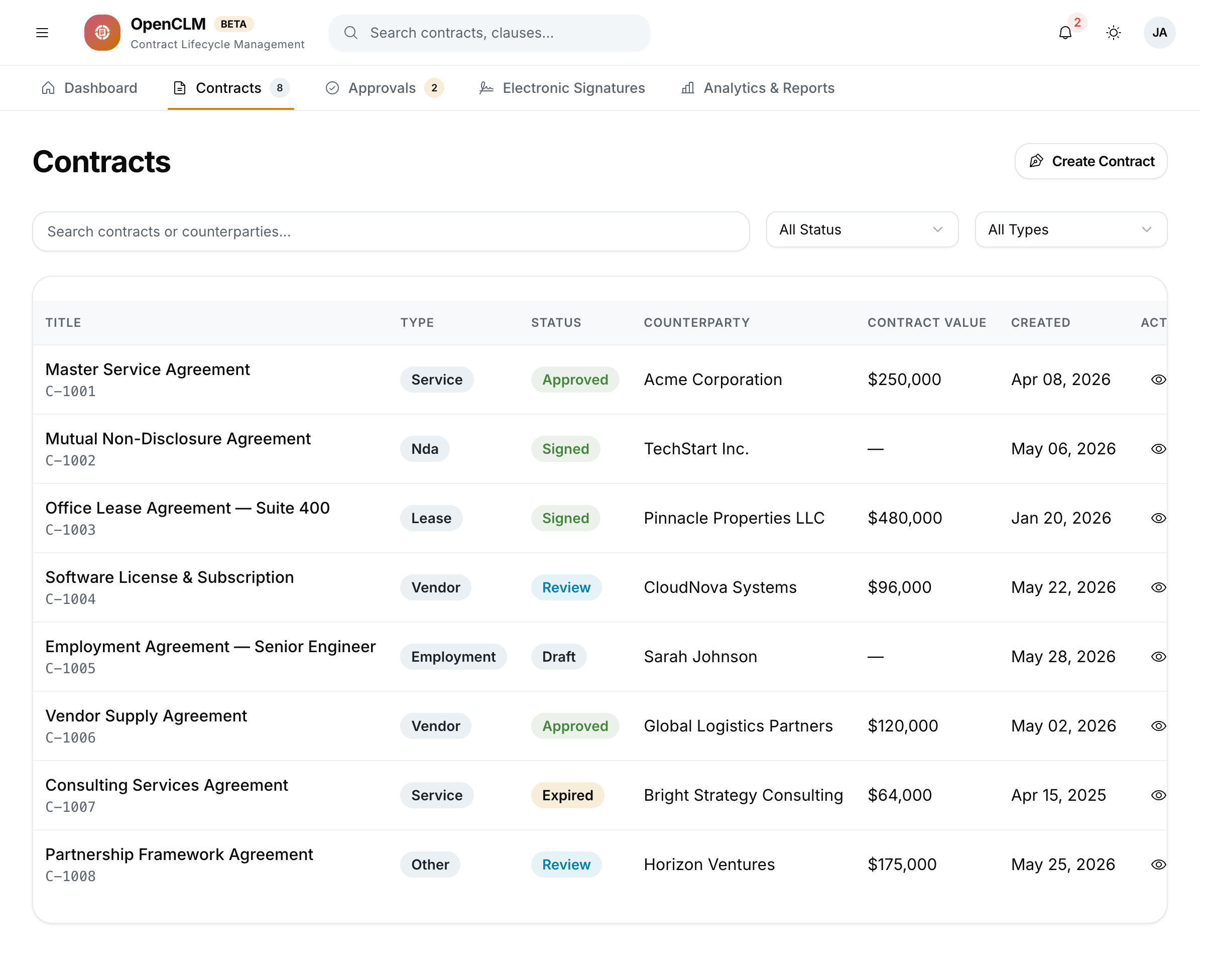
The Contract List View
When you open Contracts from the sidebar, you see a searchable, filterable table of all contracts you have access to.
Columns
| Column | Description |
|---|---|
| Title | Contract name — click to open |
| Type | NDA, Vendor, SLA, Employment, etc. |
| Counterparty | External party to the agreement |
| Status | Current lifecycle stage |
| Value | Contract monetary value |
| Expiry | Expiry/renewal date |
| Owner | The internal user responsible |
| Last Modified | Timestamp of last change |
Filtering & Sorting
- Use the search bar to filter by title or counterparty.
- Click any column header to sort ascending / descending.
- Use the filter panel (funnel icon) to filter by: Status, Type, Owner, Date range, Value range.
Bulk Actions
Select multiple contracts using the checkboxes to:
- Export to CSV or PDF
- Archive (move to archived view)
- Assign a new owner
Creating a Contract
- Click New Contract (top-right button).
- Choose to start from:
- Blank document — open the rich text editor with no pre-filled content.
- From Template — select a template; the editor pre-fills with the template body and metadata.
- Upload — upload an existing PDF or Word document.
- Fill in the contract metadata:
- Title (required)
- Type (required)
- Counterparty (required)
- Value, Currency (optional but used in Analytics)
- Effective date / Expiry date
- Owner (defaults to you)
- Click Create to open the authoring editor.
See Authoring & Editor for detailed editing instructions.
Contract Detail Page
Clicking any contract in the list opens the Contract Detail page, which has several panels:
Overview Tab
Displays all metadata fields and the current status badge. Admins and owners can edit metadata directly inline.
Document Tab
Shows the full contract body. Click Edit to enter the rich text editor (if you have edit permission).
Documents Panel
Attach supporting files — SOWs, exhibits, correspondence — to the contract. Supported formats: PDF, DOCX, XLSX, PNG, JPG (up to 25 MB per file).
Version History
Every save creates a version snapshot. Click any historical version to view a diff against the current version. See Version History.
Collaboration Panel
A threaded comment sidebar. Tag colleagues with @username to notify them. Comments are visible to all users with read access to the contract.
Approvals Tab
Shows the current approval workflow state, each approver's status, and the approval history. See Approval Workflows.
Signature Tab
Shows pending and completed signature requests. See E-Signatures.
Contract Status Transitions
You can manually change a contract's status if you have the right permissions:
| From | To | Who can do this |
|---|---|---|
| Draft | Under Review | Contract Author, Contract Manager |
| Under Review | Approved | All approvers in the workflow |
| Under Review | Rejected | Any approver |
| Approved | Signed | Contract Manager, Signatory (after e-sign) |
| Signed | Active | Contract Manager |
| Active | Expired | Automatic (based on expiry date) |
| Active | Terminated | Contract Manager, Administrator |
Archiving & Deleting
- Archive — moves the contract to a separate archived list. It remains searchable but is excluded from the main view and dashboards.
- Delete — permanently removes the contract. Only Super Admins can delete. Deleted contracts cannot be recovered.
Deletion is irreversible. Archive instead of delete unless you are certain the contract is not needed.