Contract Letters
The Contract Letters module lets you generate formal correspondence — renewal notices, termination letters, demand letters, cover letters, and more — using pre-built letter templates that pull data directly from your contracts.
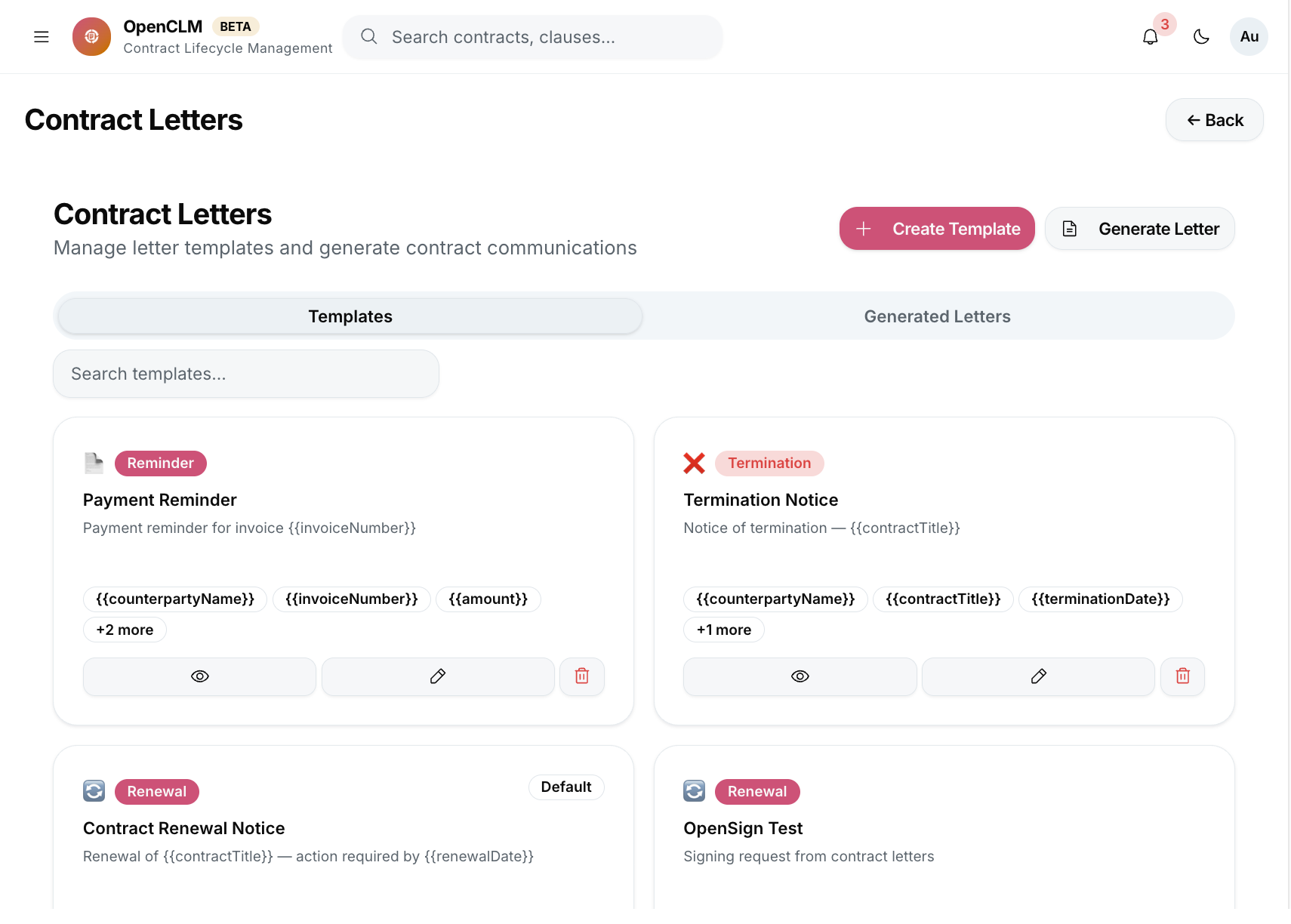
When to Use Contract Letters
| Scenario | Letter type |
|---|---|
| Notifying a vendor of contract renewal | Renewal Notice |
| Informing a counterparty of termination | Termination Notice |
| Requesting a payment overdue | Payment Demand |
| Sending a signed contract for counterparty records | Transmittal Letter |
| Formally requesting a contract amendment | Amendment Request |
Accessing Contract Letters
Click Contract Letters in the sidebar to see all letters created by your organisation. From inside a contract, click the Letters tab to see letters associated with that specific contract.
Creating a Letter
- In the Contract Letters view, click New Letter.
- Select the contract this letter is associated with.
- Choose a letter template from the library.
- Review the auto-populated fields — the template pulls in:
- Counterparty name and address
- Contract title and reference number
- Effective / expiry dates
- Contract owner and organisation details
- Edit any pre-filled field or add additional text in the freeform body section.
- Click Preview to see the formatted letter as it will appear when exported.
- Click Save to save the draft, or Export to download as a PDF.
Letter Templates
Letter templates use the same {{variable}} syntax as contract templates. Standard variables:
| Variable | Value |
|---|---|
{{counterparty_name}} | Counterparty name |
{{counterparty_address}} | Counterparty registered address |
{{contract_title}} | Contract name |
{{contract_reference}} | System-generated contract ID |
{{effective_date}} | Contract effective date |
{{expiry_date}} | Contract expiry date |
{{today}} | Letter generation date |
{{sender_name}} | Logged-in user's full name |
{{sender_title}} | Logged-in user's job title |
{{organisation_name}} | Organisation name from settings |
Creating a New Letter Template
Admins and Contract Managers can create new letter templates:
- Go to Contract Letters → Templates tab.
- Click New Template.
- Author the template body using the rich text editor and
{{variables}}. - Click Publish.
Exporting Letters
Letters can be exported as:
- PDF — formatted for printing or email attachment.
- DOCX — editable Word document.
Sending Letters
Currently, OpenCLM generates the letter file. You then attach it to an email in your email client. Native email sending (SMTP) is on the roadmap.
Letter History
Every letter generated from a contract is logged in the contract's Letters tab with:
- Generation date and time
- Generated by (user)
- Template used
- Download link to the PDF