E-Signatures
OpenCLM integrates with OpenSign — a free, open-source e-signature platform — to enable legally binding electronic signatures directly from the contract workflow.
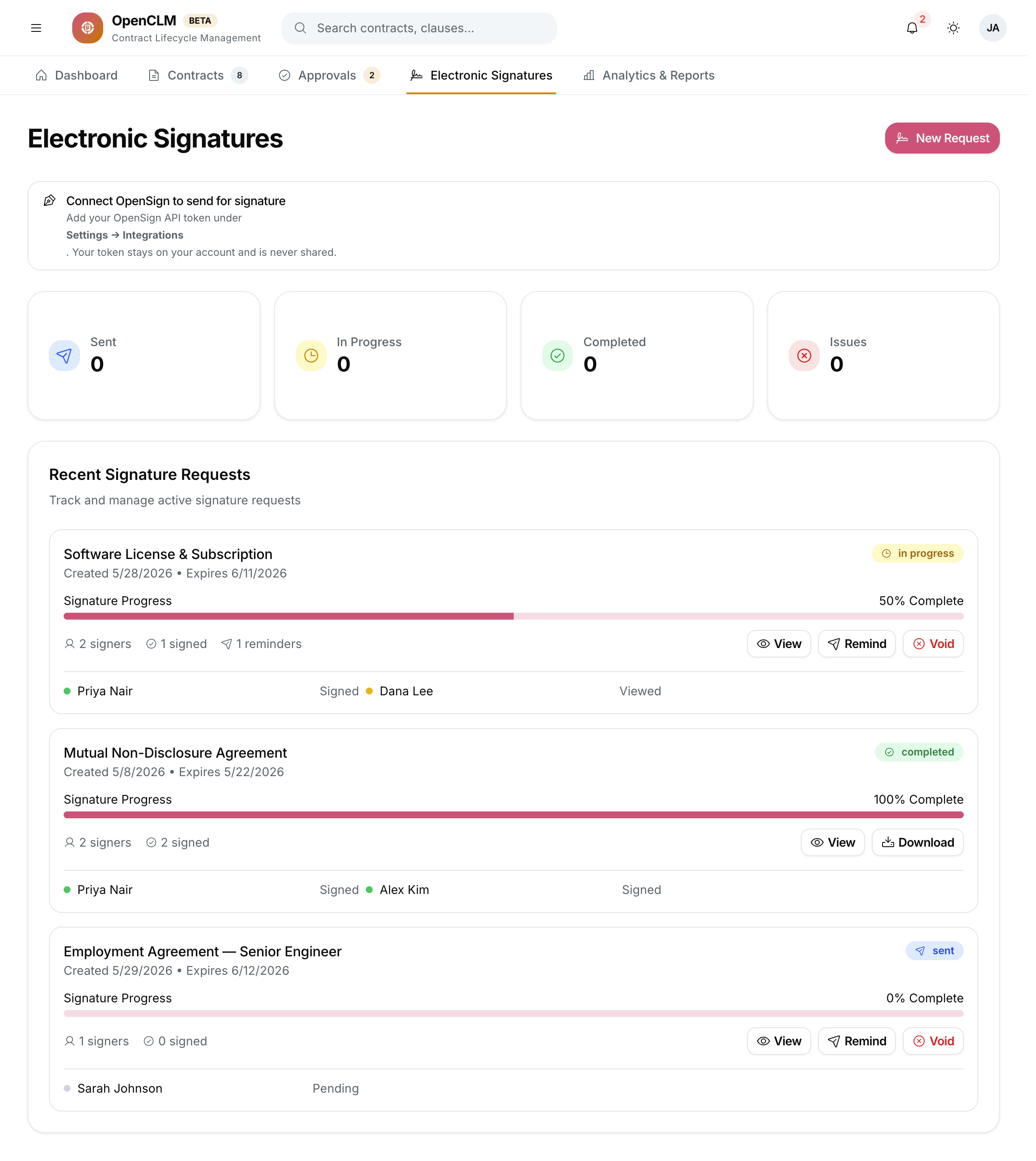
How E-Signatures Work in OpenCLM
- A contract is Approved by all required approvers.
- An authorised user (Signatory, Contract Manager) initiates a Signature Request.
- OpenCLM sends the signature request to OpenSign along with the contract PDF.
- Signatories receive an email with a link to view and sign the document.
- Once all parties sign, the signed PDF is automatically attached back to the contract in OpenCLM.
- The contract status updates to Signed.
Prerequisites
Before sending signature requests:
- An Administrator must configure the OpenSign connection in Settings → Integrations.
- The contract must be in Approved status.
- The initiating user must have the
signatures:createpermission (Signatory, Contract Manager, Administrator roles).
Sending a Signature Request
- Open an Approved contract.
- Click the Signatures tab.
- Click Request Signatures.
- Add signatories:
- Internal signatories — search by name among OpenCLM users.
- External signatories — enter name and email address.
- Set the signing order:
- Sequential — Party A signs first, then Party B receives the document.
- Parallel — All parties receive the signature request simultaneously.
- Optionally add a message to include in the invitation email.
- Set an expiry date — the signature request expires and must be re-sent if not signed by this date.
- Click Send.
Signature Status
The Signatures tab shows the real-time status for each signatory:
| Status | Meaning |
|---|---|
| Pending | Signature request sent, awaiting response |
| Viewed | Signatory opened the document |
| Signed | Signatory completed signing |
| Declined | Signatory declined to sign |
| Expired | Request expired without a signature |
After All Parties Sign
- OpenSign returns the fully executed PDF to OpenCLM.
- The signed PDF is attached to the contract's Documents tab as "Signed Copy".
- The contract status changes from Approved to Signed.
- Contract Manager and the author receive an email notification.
Resending or Cancelling
To resend a pending request (e.g. if the signatory missed the email):
- Go to the Signatures tab.
- Click the ⋮ menu next to the pending signatory.
- Click Resend reminder.
To cancel a signature request:
- Click Cancel Request in the Signatures tab.
- Provide a cancellation reason.
- All signatories receive a cancellation notification.
Cancelling a signature request does not change the contract status — it remains Approved. You can send a new signature request after cancellation.
Signature Audit Certificate
After all parties sign, download the Audit Certificate from the Signatures tab. This PDF contains:
- Each signatory's name, email, IP address, and timestamp.
- Document hash for integrity verification.
- OpenSign certificate ID.
The Audit Certificate provides legal evidence of the signing event.
E-Signature Legality
Electronic signatures via OpenSign are valid under:
- eIDAS (EU)
- ESIGN Act & UETA (US)
- Most other national e-signature laws
Consult your legal team to confirm compliance requirements for your specific jurisdiction and contract type.