Notifications
OpenCLM sends both in-app and email notifications to keep users informed about events that require their attention.
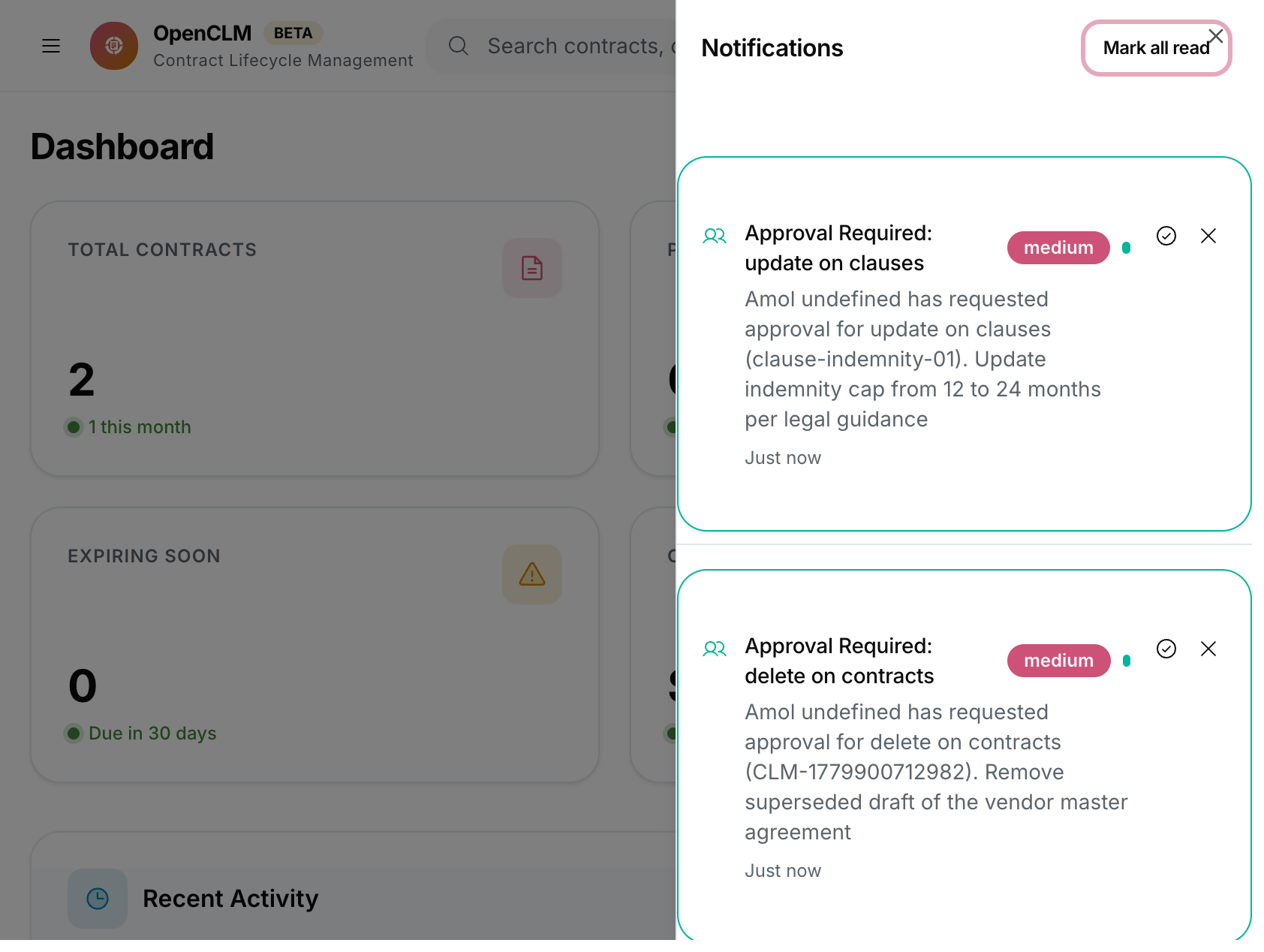
In-App Notifications
The bell icon (🔔) in the top navigation bar shows the count of unread notifications. Click it to open the notification panel.
Notification Types
| Event | Who is notified |
|---|---|
| New approval request | The assigned approver(s) |
| Approval approved | The contract owner and previous approvers |
| Approval rejected | The contract author / owner |
| Contract signed | The contract owner and Contract Manager |
| Deadline approaching | Contract owner, Contract Manager, configured roles |
| Obligation due | The obligation's responsible party |
| Comment added | All users who have commented on the contract + the owner |
| Document attached | Contract owner |
| Contract status changed | Contract owner, all approvers in the workflow |
Managing In-App Notifications
- Click Mark as read on individual notifications.
- Click Mark all as read to clear the counter.
- Click Notification Settings at the bottom of the panel to manage preferences.
Email Notifications
Configuring SMTP
Email delivery requires SMTP configuration (Super Admin / server-level):
# In .env
SMTP_HOST=smtp.yourdomain.com
SMTP_PORT=587
SMTP_PASS=your-smtp-password
SMTP_FROM_NAME="OpenCLM"
SMTP_SECURE=true
Per-User Notification Preferences
Each user can configure which events they want to receive emails for:
- Go to Settings → My Account → Notifications.
- Toggle each notification type on or off.
- Choose between Immediate (send per event) and Digest (daily/weekly summary).
Organisation-level Email Defaults
Administrators can set default notification preferences for new users:
- Go to Settings → Notifications → Defaults.
- Toggle each event type.
- Click Save Defaults.
New users inherit these defaults. They can override them in their personal settings.
Deadline Reminder Configuration
Configure reminder schedules at Settings → Notifications → Deadline Reminders:
- Select the offset days: e.g. 90, 60, 30, 14, 7, 1 days before expiry.
- Select which roles receive the reminder: Contract Owner, Contract Manager, Department Head.
- Click Save.
Notification Digest
Instead of individual emails for each event, users can opt into a daily or weekly digest that summarises all activity since the last digest.
Configure at Settings → My Account → Notifications → Delivery → select "Daily Digest" or "Weekly Digest".