Deadlines & Renewals
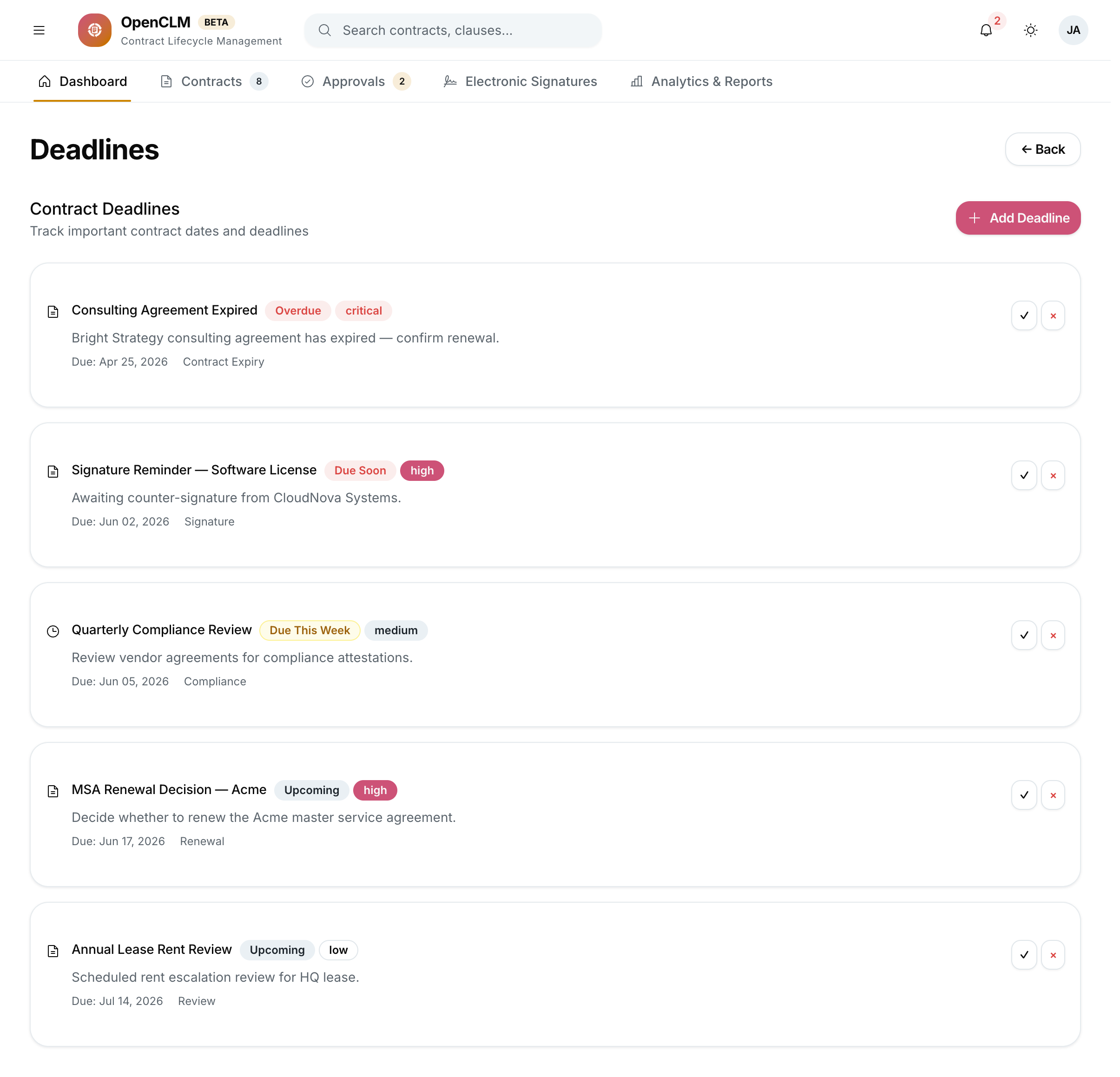
The Deadlines module gives your team a single view of every time-sensitive date across your entire contract portfolio. Contracts are automatically flagged when they approach expiry so you can renew, renegotiate, or terminate before the window closes.
Accessing Deadlines
Click Deadlines in the left sidebar.
The Deadlines Dashboard
The dashboard shows three categorised lists:
Overdue
Contracts whose expiry date has already passed but have not been terminated or renewed. These require immediate attention.
Expiring Soon (0 – 30 days)
Contracts expiring within the next 30 days. The exact threshold is configurable per organisation in Settings.
Upcoming (31 – 90 days)
Contracts expiring in the next 31 to 90 days. Use this window to begin renegotiation or prepare renewal paperwork.
Each row shows: Contract title, counterparty, expiry date, owner, contract value, and a Days remaining countdown.
Configuring Reminder Windows
Administrators can configure how early reminders are sent:
- Go to Settings → Notifications → Deadline Reminders.
- Set reminder offsets: e.g. 90 days, 60 days, 30 days, 7 days before expiry.
- Choose recipients: Contract Owner, Contract Manager, Department Head, or specific roles.
Auto-Renewal Tracking
Some contracts include auto-renewal clauses — they renew automatically unless cancelled before a specific date (the notice period). OpenCLM supports tracking these:
- On any contract's metadata panel, toggle Auto-Renews.
- Set the Notice Period (e.g. "30 days before expiry").
- OpenCLM sends reminders at the notice period boundary — giving the owner time to decide whether to cancel or let the contract renew.
When a contract auto-renews:
- The expiry date is updated automatically (if configured).
- A new version snapshot is created.
- The owner receives an "Auto-Renewed" notification.
Taking Action on Expiring Contracts
From the Deadlines view, clicking a contract opens it in a split-pane with quick action buttons:
- Mark Renewed — update the expiry date and status.
- Initiate Renegotiation — clone the contract as a Draft with a link back to the original.
- Terminate — update status to Terminated with an end date and reason.
- Extend — add an extension period without creating a new contract.
All actions are logged in the contract's audit trail.
Export
Click Export (top-right) to download the current Deadlines view as a CSV — useful for presenting to a legal operations team or board.